Sometimes you just need to make a file smaller, quality be darned.
Maybe it’s your kid’s school play performance that probably doesn’t need to be preserved in pristine 4K resolution. Or perhaps it’s a PDF that won’t fit within your email provider’s attachment size limits.
Whatever the case, it’s worth bookmarking a couple of free tools that can squish your files down without uploading them to some untrustworthy server somewhere or making any other needless compromises.
This tip originally appeared in the free Cool Tools newsletter from The Intelligence. Get the next issue in your inbox and get ready to discover all sorts of awesome tech treasures!
Quick and easy file compression
For a simple way to make your files smaller, check out vidshift.io (for videos) and nanofile.io (for everything else).
➜ Vidshift and Nanofile are free online tools for compressing files, both from the same developer.
⌚ It takes just a minute to start uploading and compressing, though the actual compression times depend on the size of your files.
Both tools are free with no sign-ups or ads, and the compression all happens entirely offline.
1️⃣ Let’s start by looking at Nanofile, which works for images, audio files, and documents. Open up the site, then either use the “Browse your device” link or drag a file directly onto the page. Nanofile will automatically recognize your file type and offer some options to make it smaller.
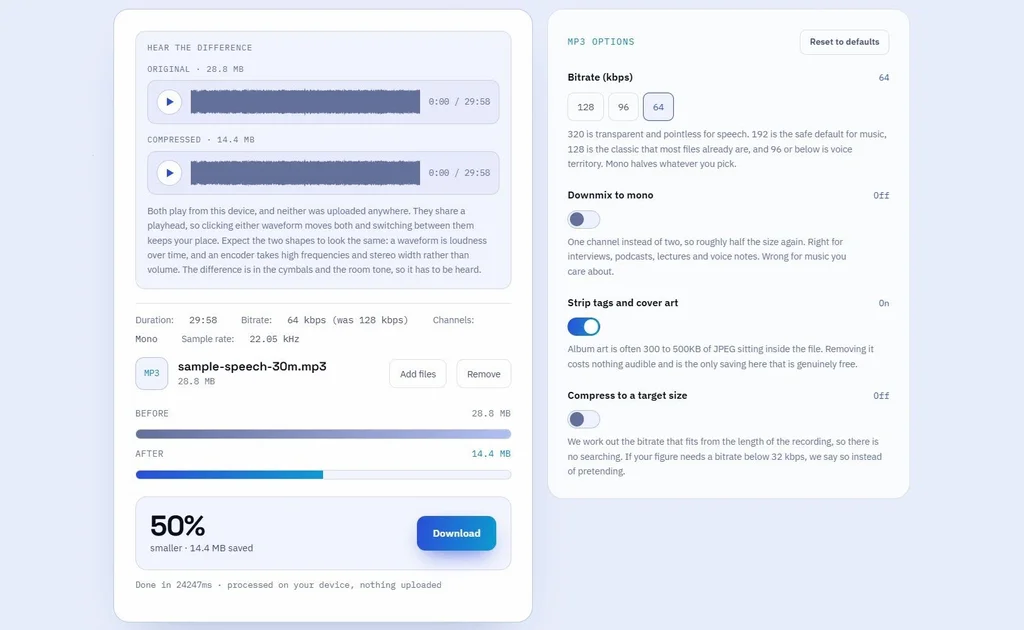
With MP3s, for instance, Nanofile can lower the bit rate, mix down from stereo to mono, and strip out cover art. For PDFs, you’ll see a quality slider and a way to compress any included images. There’s also a handy comparison for audio files and images, so you can look for any discernible differences. When you’re done, just click the Download button to grab your compressed file.
2️⃣ As for Vidshift, while it’s billed primarily as a way to convert between video file types, it also has a compression tool to make your videos smaller.
☝️ Make sure to visit Vidshift’s Compressor page, not the main page—which is for converting between video formats. The latter tool can wind up making your videos larger.
After choosing a video, select a target size from one of the presets or use the “Custom” button to choose how small the video should be. (You can see the current size of the video in megabytes underneath the file name at the top.)
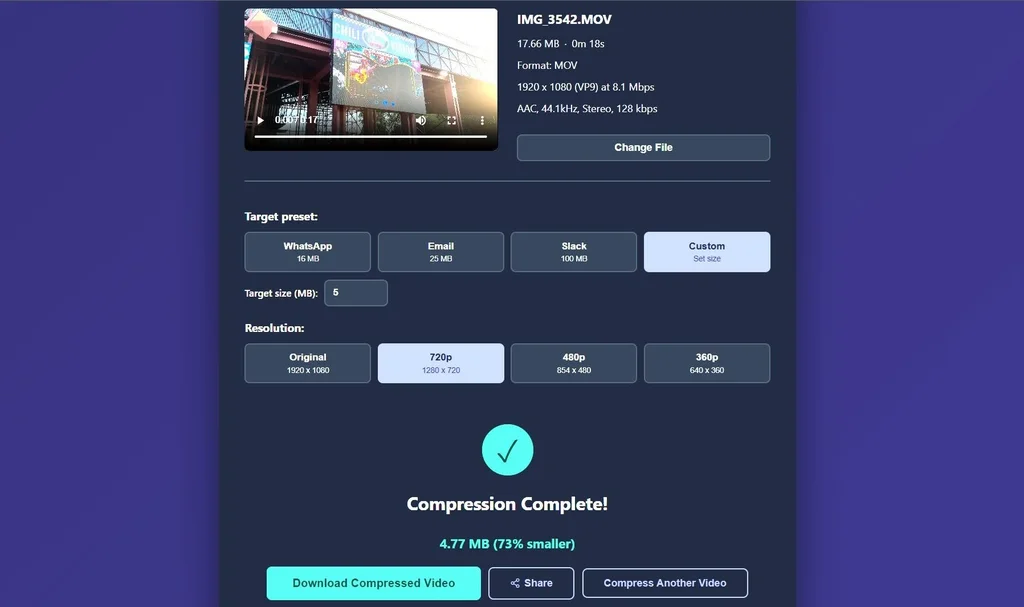
The smaller you go, the more you’ll notice blocky compression artifacts in your videos. Using the resolution settings can make your video smaller with less obvious blockiness, though the video won’t look as crisp, especially when viewed on larger screens.
As long as you’re making adjustments, Vidshift has some other useful video editing tools worth noting, including a trimmer, cropper, and GIF converter.
Note that while both Vidshift and Nanofile require an internet connection to load, the actual file processing happens entirely on your own local device. I confirmed this by adding and modifying files in both tools while my computer was disconnected from the internet.
🎁 One more bonus tip: The same developer also makes a tool for converting text between uppercase and lowercase, for instance if you type out a rant in ALL CAPS and then decide to tone it down a little. Just don’t expect the quieter prose to make your documents any smaller.
- Vidshift and Nanofile are both available in any browser, but they work best on desktop devices.
- Both sites are free to use, with no registration and no usage limits.
- The sites use Google Analytics to collect aggregate data on things like how visitors arrived at the site and the compression options people choose, but the developer says they have no access to your content and do not share any data for marketing purposes.
Treat yourself to all sorts of brain-boosting goodies like this with the free Cool Tools newsletter—starting with an instant introduction to an incredible audio app that’ll tune up your days in truly delightful ways.