
Few automated emails trigger a micro-headache quite like the dreaded cloud storage warning: “Your storage is 95 percent full. Upgrade now or risk losing access to everything you hold dear.”
The natural impulse is to hand over your credit card for the next storage tier. It costs a couple of bucks a month, it solves the immediate problem, and you can get back to work.
But doing that is the digital equivalent of renting a bigger storage unit because you refuse to throw away empty cardboard boxes.
Before you commit to another monthly subscription fee, spend a few minutes running this targeted purge across Google Drive, Gmail, and Photos.
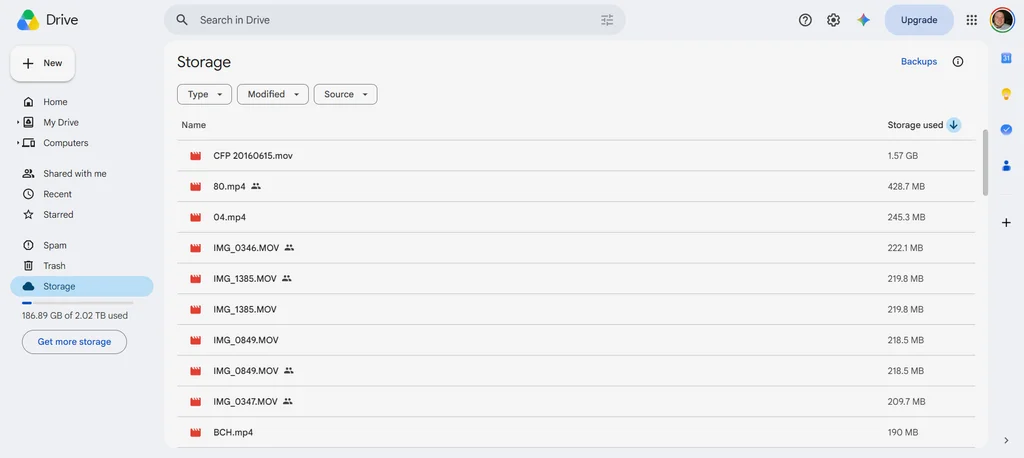
Force Google to rank your files by size
Skip digging through individual subfolders. Instead, open your browser and navigate directly to drive.google.com/drive/u/0/quota.
This hidden view bypasses your folder structure and lists every single file in your storage pool in descending order of size. Delete any oversized files you no longer need, and you’ll likely recover a ton of storage immediately.
Flush Gmail’s heavy attachments
Old emails with large attachments are massive storage hogs. Head to the Gmail search bar and paste this exact operator: has:attachment larger:10M.
This surfaces every email carrying files over 10 megabytes. Select the messages you don’t need, hit delete, and move on.
Optional: Save storage in Google Photos
If Google Photos is consuming your account allocation, you don’t have to delete your memories. Go to photos.google.com/settings on a desktop browser and click Recover storage.
This automatically compresses your existing high-res photos down to high-quality 16MP versions and 4K videos down to 1080p, recovering gigabytes of space in one click without a ton of visual degradation.
Empty the trash
Deleting files in Google Drive or Gmail doesn’t actually free up space right away. They move to the Trash folder where they sit for 30 days. Go to Drive > Trash and click Empty trash. Do the same thing inside Gmail and Google Photos.