
Talking out loud to Gemini Live works well at home, yet it feels awkward on a quiet train or inside a busy office. Google seems ready to solve that problem by placing a permanent text box right inside the Gemini Live screen. Code found in a new Google app update also reveals an Activity menu built to track your background and scheduled tasks.
Both additions turned up in Google app version 17.78.14 after Android Authority enabled them manually. At the top of the Gemini Live view, a new Activity option opens two tabs named Tasks and Scheduled, with a close button sitting in the top-left corner. Neither tab showed live entries during testing, though the labels clearly separate one-time background jobs from recurring routines like a daily news summary.


Typing joins live voice chats
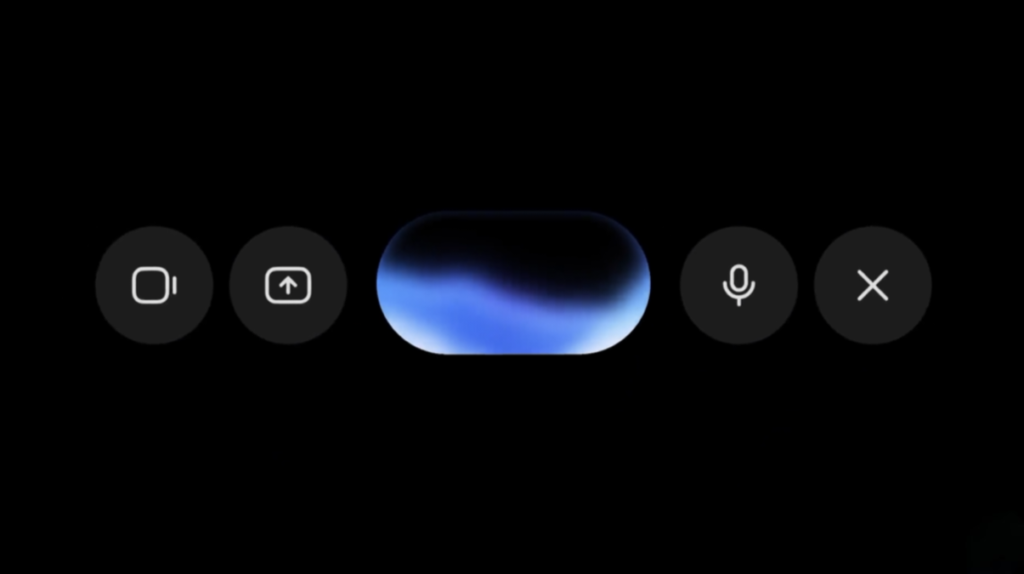
Currently, Gemini Live shows a blue pill-shaped voice visualizer between its bottom control buttons. In this test version, Google removes that blue visualizer and puts a text field in its place so you can type prompts mid-session. Similar code back in September pointed to swiping up to open a keyboard, so keeping the box visible on screen skips that extra step.
The updated input bar looks much closer to the standard Gemini chat screen so controls stay easy to find. Shortcuts for the plus menu, video feed, microphone, and exit button sit right inside the text field. Being able to jump between talking, sharing camera video, and typing makes Live chats far easier to use when you cannot speak out loud.

Still in early beta testing
As testers had to unlock these menus manually in version 17.78.14, Google has not said when they will roll out widely. Seeing typing controls return two months after September’s keyboard clue shows the redesign is still actively in the works. Even so, features spotted inside Google app code sometimes shift before reaching everyone.
The post Google Is Finally Adding a Text Box to Gemini Live for Moments When Talking Out Loud Feels Awkward appeared first on Android Headlines.