
Samsung quietly launched the Galaxy S26 series last month with support for Apple’s AirDrop. Though it did take a software update to launch for these Samsung phones, before it would work. That update is now out and available for the Galaxy S26 and should be coming to older Samsung phones in the very near future.
Now, how do you use AirDrop on the Galaxy S26 and how well does it work? Honestly, it works as well as you’d expect. Unfortunately, AirDrop in general is fairly slow when it comes to moving around large files – think multi-gigabyte video files – but it does “just work”.
How to set up AirDrop on Samsung Galaxy S26
First, you’ll need to make sure you’re on the latest software version of One UI 8.5. This is going to be build S948U1UEU1AZCF or later.

- Jump into Settings, tap on Connected Devices and then Quick Share.
- Ensure that Share with Apple Devices is toggled on. Otherwise, iPhones and other Apple devices will not appear in Quick Share.
- Now, on the Apple device you want to share with, head to Settings and tap on AirDrop, then tap on Everyone for 10 minutes. The reason for this is because the Android device is not in your contacts, so you need to turn on AirDrop for everyone.
- Now, go back to your Galaxy S26 and find the file(s) you want to share. Hit the share button, and hit Quick Share.
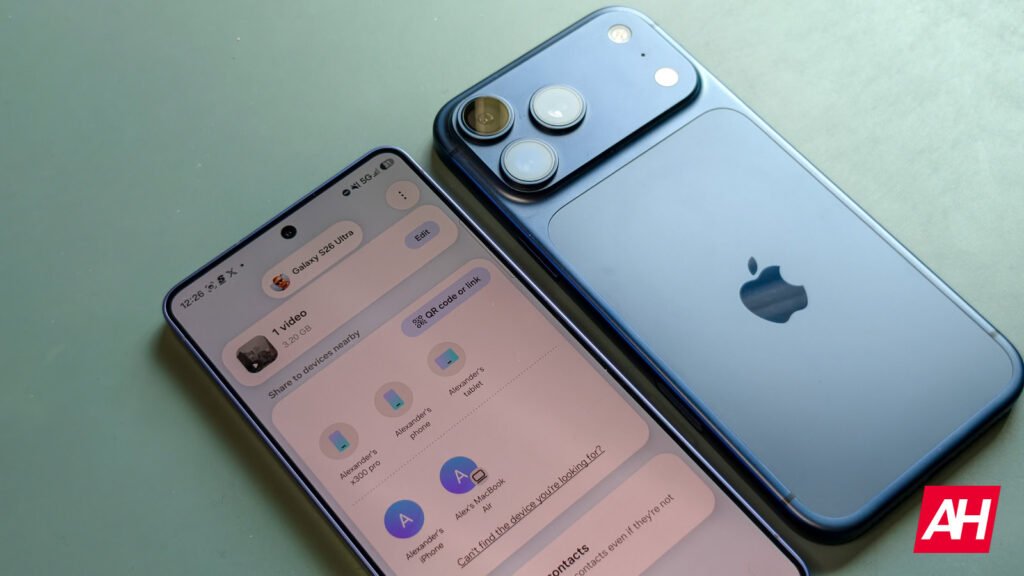
- On this screen, you’ll see all of the devices you can share with. This includes Android devices, iPhones, and even MacBooks now. Tap on the device you want to share with, to send those files.
- On the Apple device, you will need to tap on Accept from the pop-up – again this is because it is seen as a “stranger” device, not one that is in your contacts. And within a few seconds (depending on the size of the files), they should be sent over, and available on said Apple device.
- And that’s it.
How to share files from iPhone to Samsung Galaxy S26 using AirDrop
And it works the same way, the other way around. Going from the iPhone to Samsung Galaxy S26. Just make sure you have AirDrop enabled for everyone on your Galaxy device.

Once that happens, just tap on the device, to share the file(s), and you’re all set.
The post How to use AirDrop on Samsung Galaxy S26 Series appeared first on Android Headlines.