
Android offers many different ways to take screenshots and save images that might be of use to you later on, and with Android 16 the recent apps screen on Pixel devices was one of those ways. At least, until recently. It looks like Google has removed the ability to directly save images on the recent apps screen on Pixel devices. This is reportedly part of the Android 16 QPR3 update that went out to devices this month.
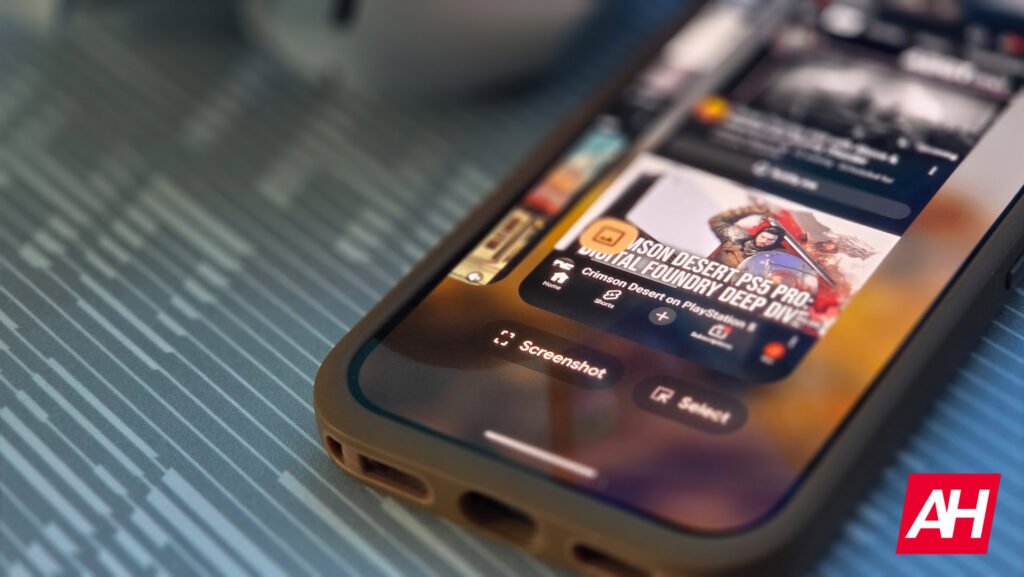
If you weren’t familiar with this function, that’s understandable. It’s easy to miss unless you actively pay attention to it. If you’re like many, though, you probably open recent apps just to swap between open apps, and not much beyond that. However, utilizing the screenshot and select functions from this screen makes for nifty little quick snippets of stuff you might want to share or save for later on.
Select lets you pick from any of the images showing up in the recent apps picker for each app. It also lets you select any of the highlighted text. While screenshot just takes a screenshot of the entire thumbnail for whatever app is in focus on that screen. These functions have reportedly been downgraded, but only if you’ve installed the Android 16 QPR3 update.
The recent apps screen direct image-saving functions are gone with Android 16, but not for everyone
It’s worth noting that while this feature will probably be changed for everyone eventually, Pixel users who haven’t installed the Android 16 QPR3 update should still have access to the old way these functions operated. If you use these functions a lot, you could get around their change by avoiding the update. Assuming you haven’t already installed it.
The way it used to work is that you could hit the select option and then tap an image, and a save option would appear. There would also be options for sharing the selected image, or getting more information via Google Lens.
Now, a there is no direct “save” option. In its place is a new large panel that comes up from the bottom of the screen. The panel should show you all available options for sharing the image. That includes sharing directly with another person through messages and the like. If you want to save it to your phone, though, your options are to share it with Files by Google to download it, or with Google Photos to upload it to your Photos library. The end result is the same, but it’s not as seamless.
The post Google just nerfed the recent apps screen on Pixel devices appeared first on Android Headlines.