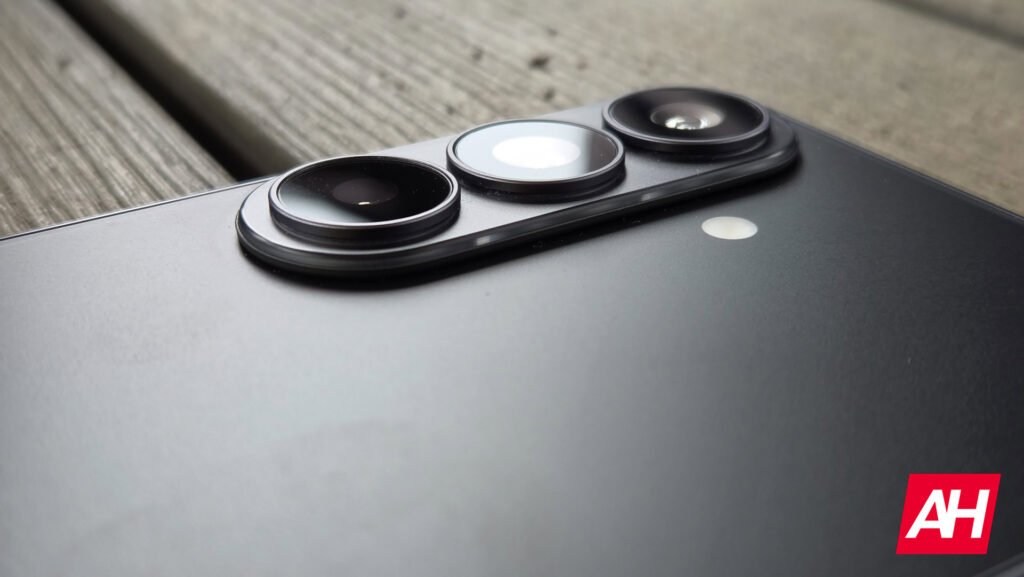

Like every other Android phone out there on the market the Galaxy S26 is capable of taking screenshots, allowing you to easily save images or detailed information on stuff you might want to share with friends. The problem can be that you don’t know how to take a screenshot on your Galaxy S26. If you’re coming from something like a Google Pixel device, such as the Google Pixel 10, then the process is going to be different on the Galaxy S26 by default.
That’s what this handy guide is here for. It’s intended to walk you through the very easy and convenient process of taking a screenshot on this device, so that you don’t have to struggle with it even in the slightest. If you’ve just picked up a Galaxy S26, be sure to also check out our Best Samsung Galaxy S26 Cases guide to ensure your phone stays protected.

Samsung Galaxy S26
Samsung is offering up to $380 instant trade-in credit on the Galaxy S26.
How to take a screenshot on the Samsung Galaxy S26
With most Android phones and dating as far back as one can remember for the Android ecosystem, taking a screenshot has usually been done by simultaneously holding down the power and volume down buttons. Well, take that idea and toss it right out the window because that’s not how you do it on the Galaxy S26.

Quickly press the power and volume down buttons simultaneously
Samsung changed the method for taking a screenshot just slightly. You still press the power and volume down buttons at the same time. The only difference is that you don’t hold these two buttons down. You simply press them both quickly at the same time, and that’s it. This will easily allow you take a quick screenshot if you need to grab one fast. Of course, there are other methods that you might find are to your liking.

Use Google Gemini
Hands-free actions on your phone are one of the specialties of tools like Google Assistant, or in this case Gemini these days, and you can easily use Gemini to take screenshots hands-free on the Galaxy S26. Like with any of the other Gemini-related features, you will need to set Gemini up first. This is a fairly quick process and the phone should walk you through it as part of the initial phone setup. All you have to do is say “Hey Google, Take a screenshot,” and Gemini will take a screenshot of the current screen you’re on. It’s fast and easy and doesn’t require pressing anything.

Use Bixby
Yes, just like with Gemini, it’s possible to use Samsung’s own virtual assistant to take screenshots on your device. In a similar fashion, just say “Hey Bixby, take a screenshot,” and Bixby will complete its command. Much like with Gemini, you will need to ensure that Bixby is set up. Since this acts the same way as with Gemini, use whichever one suits you best. If you use Gemini more, then use Gemini. If it’s the other way around, then use Bixby. Or, use both. Because you can.

Palm swipe to capture
The last native way to take screenshots on the Galaxy S26 is to use the palm swipe to capture feature. This is part of Samsung’s Advanced gestures, and uses the Motions and Gestures options to make this work. This is actually really easy and simple to setup. First, go into settings, then scroll to find and go into the Advanced features menu. Inside this menu, tap on the Motions and gestures menu. Once inside here, make sure that the toggle labeled as Palm swipe to capture is enabled. Once that’s done, all you have to do is swipe the edge of your palm across the display. This can be done from left to right or right to left, it doesn’t matter.
Also keep in mind that this is not an air gesture. Your palm needs to physically be touching the display as you move your hand across it. And that’s it for native screenshot capture methods.

How to take a scrolling screenshot
Ok so now you know how to take screenshots on your Samsung Galaxy S26. You have a handful of different ways to do it. What about scrolling screenshots, though? The Galaxy S26 can do this too. And it’s really easy. Once you take a screenshot, there will be a thumbnail preview of that screenshot that pops up in the bottom left corner of the screen.
Below that thumbnail, there will a button with two arrows pointing downward. Tap on that button and that will scroll the screenshot down further to extend and capture more of the screen. You can do this more than once if the information you’re trying to capture is particularly far down the page. You can also use any screenshot method to grab the original screenshot before tapping the scrolling screenshot button. All of them will still pop up the same thumbnail preview with that button below it.
Samsung Galaxy S26
Samsung is offering up to $380 instant trade-in credit on the Galaxy S26.
The post How to take a screenshot on the Samsung Galaxy S26 appeared first on Android Headlines.